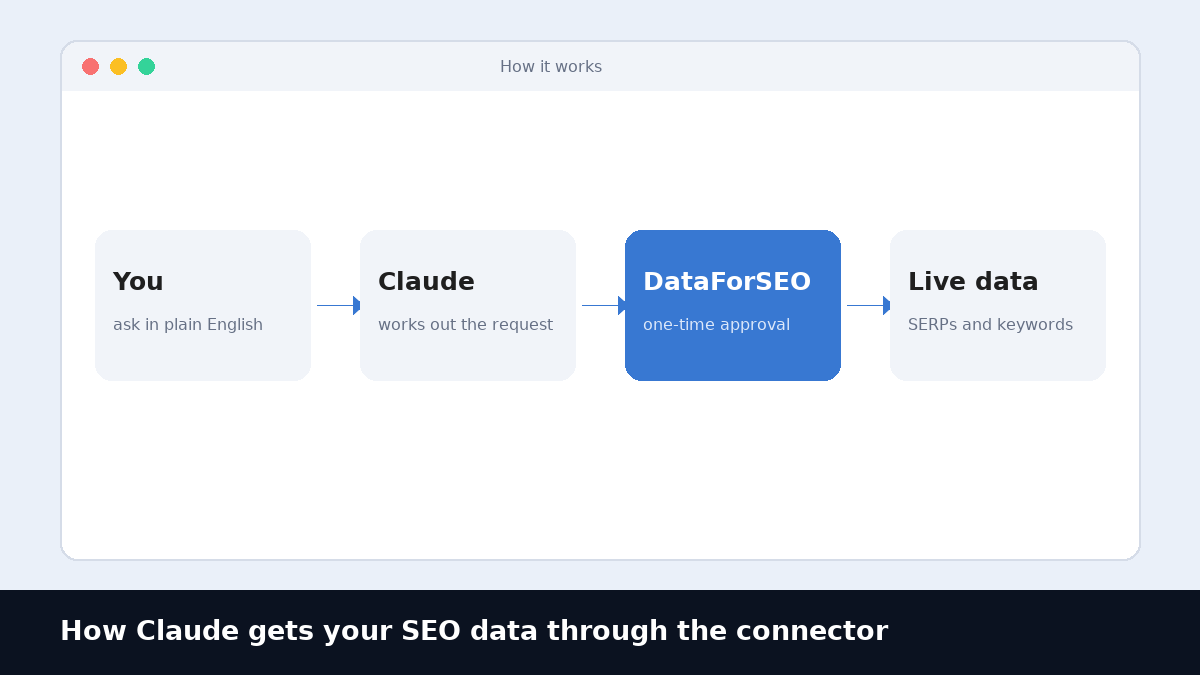
- You add one connector to Claude and approve it once. No terminal and no config files.
- After that you ask SEO questions in plain English and Claude pulls live data from DataForSEO.
- You pay for the data you use, not a monthly seat.
If you do SEO work, you can stop copying numbers out of a dashboard and ask for them in a chat instead. This guide shows how to connect Claude to DataForSEO so it can pull live keyword, search result and backlink data for you. It takes about five minutes and needs no code.
Your checklist
- ☐ Create a DataForSEO account (2 min)
- ☐ Open Claude and add the custom connector (2 min)
- ☐ Approve access (30 sec)
- ☐ Set tool permissions (1 min)
- ☐ Run a test prompt (1 min)
What you need
| Item | Notes |
|---|---|
| Claude desktop app | Download from claude.com/download. DataForSEO’s own guide uses the desktop app. |
| A paid Claude plan | DataForSEO’s guide lists this as a requirement for custom connectors. |
| A DataForSEO account | Free to create. New accounts get $1 of API credit, no card needed. |
Step 0: Create your DataForSEO account
Sign up here: Create a DataForSEO account
You get $1 of credit to test with. According to DataForSEO, that covers roughly 833 SERP lookups, or about 20,000 keywords with Google Ads metrics. It does not expire, so there is no rush.
You do not need your API login and password for this method. The connector signs in through your normal DataForSEO account.
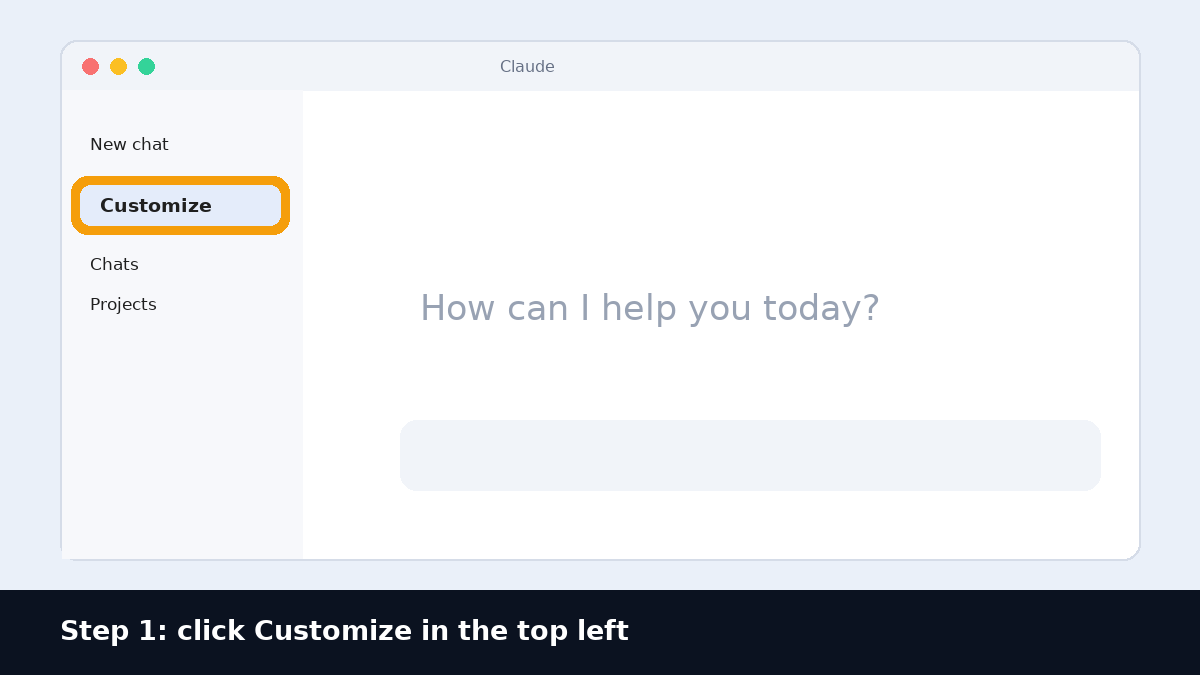
Step 1: Open Claude and click Customize
Open the Claude desktop app and click Customize in the top left corner.
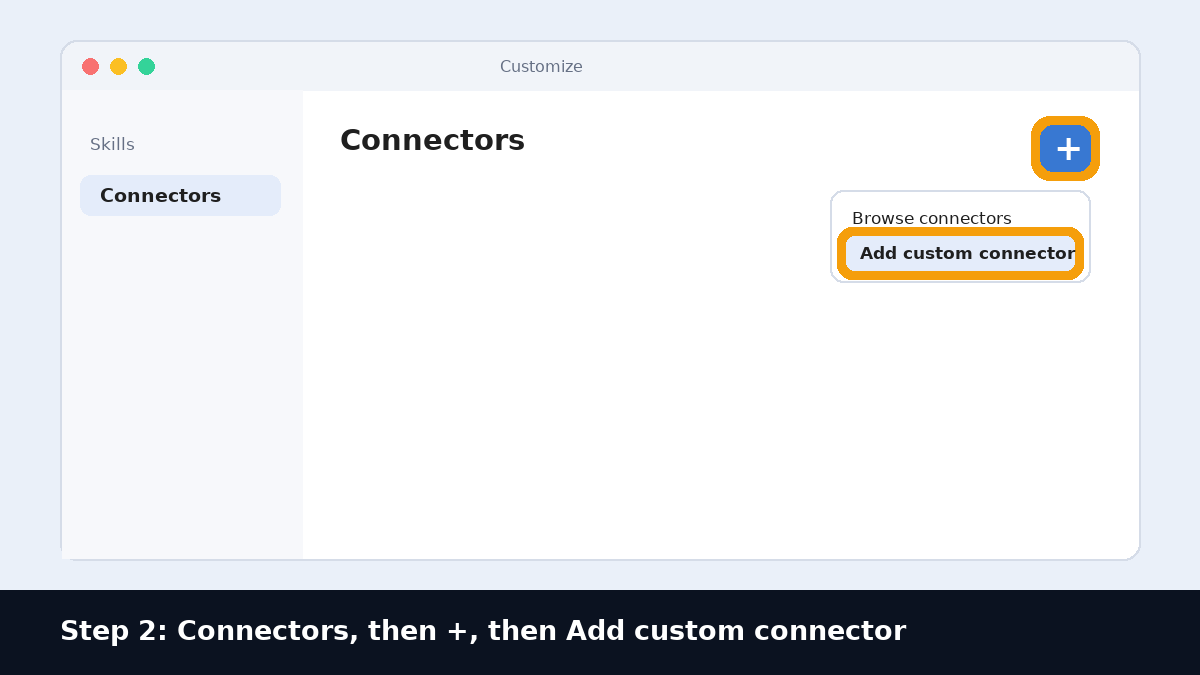
Step 2: Add a custom connector
In the menu, choose Connectors. Click the + button, then pick Add custom connector.
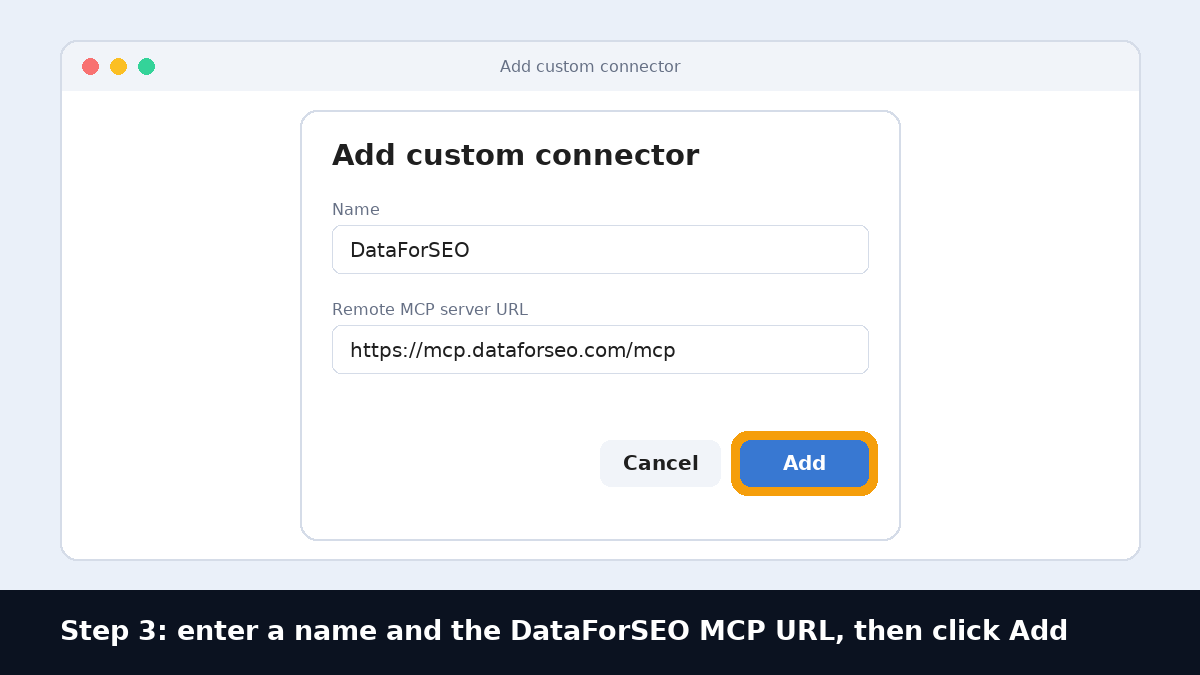
Step 3: Name it and paste the URL
Give it a name you will recognise, like DataForSEO. In the URL field paste this exactly:
https://mcp.dataforseo.com/mcpClick Add.
Step 4: Click Connect
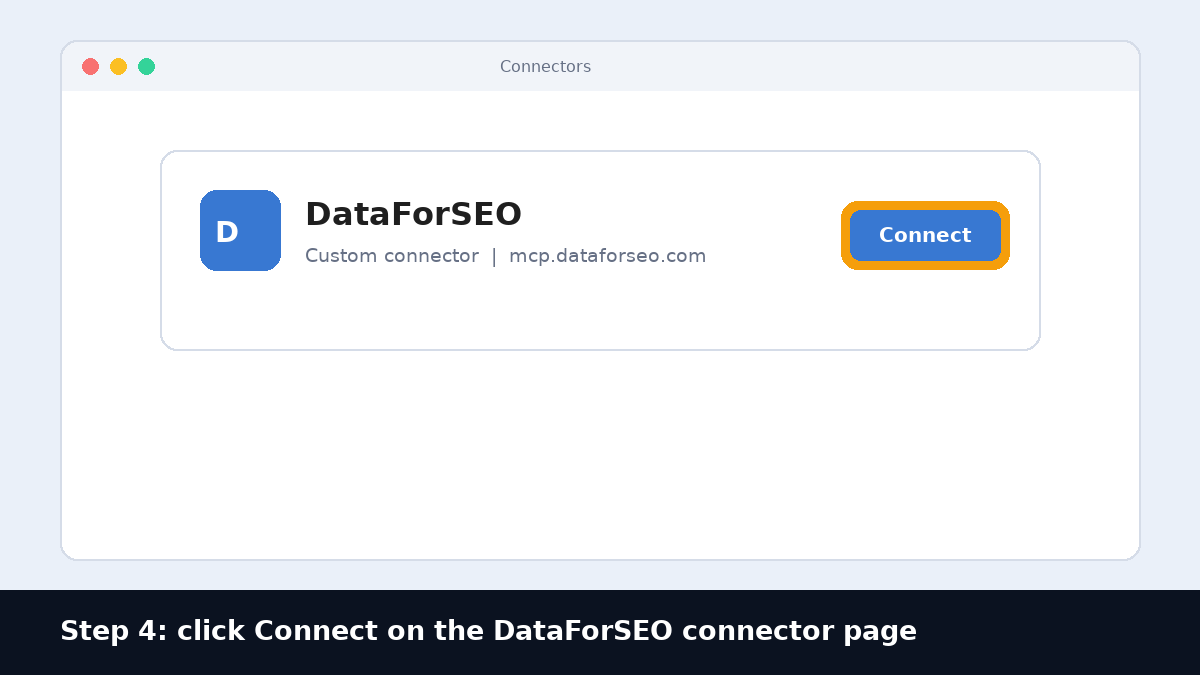
On the connector page, click Connect. Your browser opens the DataForSEO sign in and approval page.
Step 5: Approve access
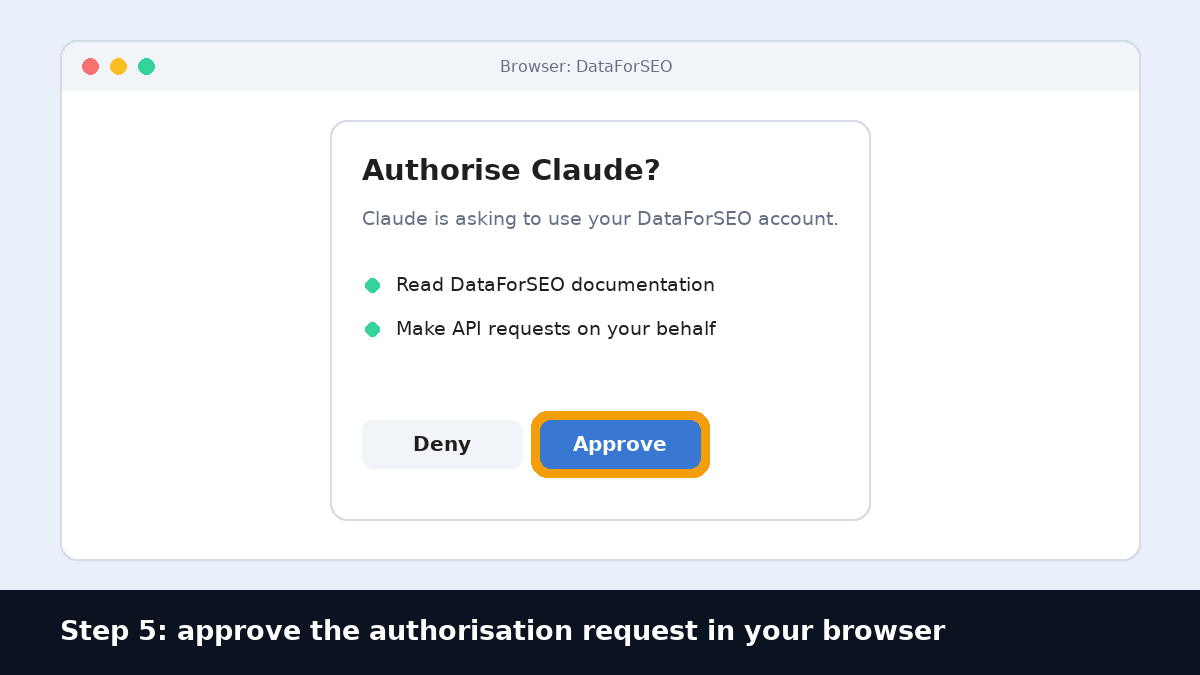
Sign in to your DataForSEO account if it asks, then click Approve. Switch back to Claude when it finishes.
Step 6: Check the tools and set permissions
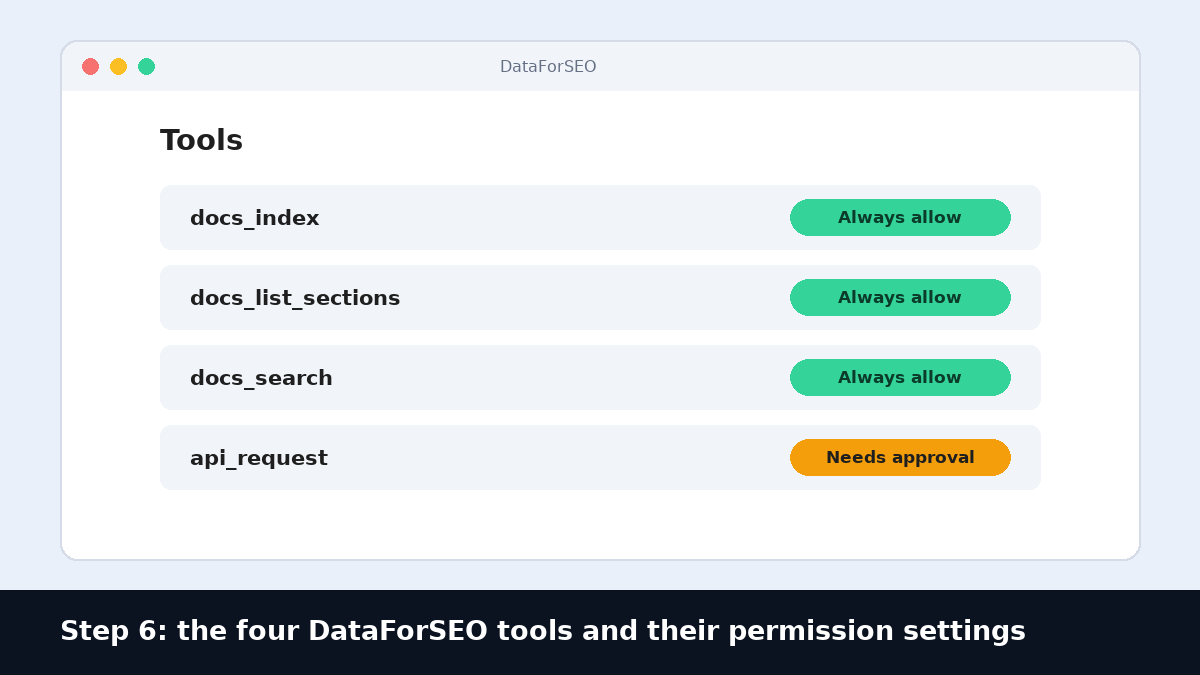
Back in Claude, the connector now shows as connected. You should see four tools:
| Tool | What it does |
|---|---|
docs_index |
Gives Claude the full DataForSEO documentation index |
docs_list_sections |
Lists the documentation sections |
docs_search |
Reads the docs for a specific endpoint |
api_request |
Makes the actual data request |
The first three only read documentation, so they are safe to set to Always allow. Set api_request to Needs approval while you are learning. That is the tool that spends your credit, and approving each call shows you what Claude is about to ask for.
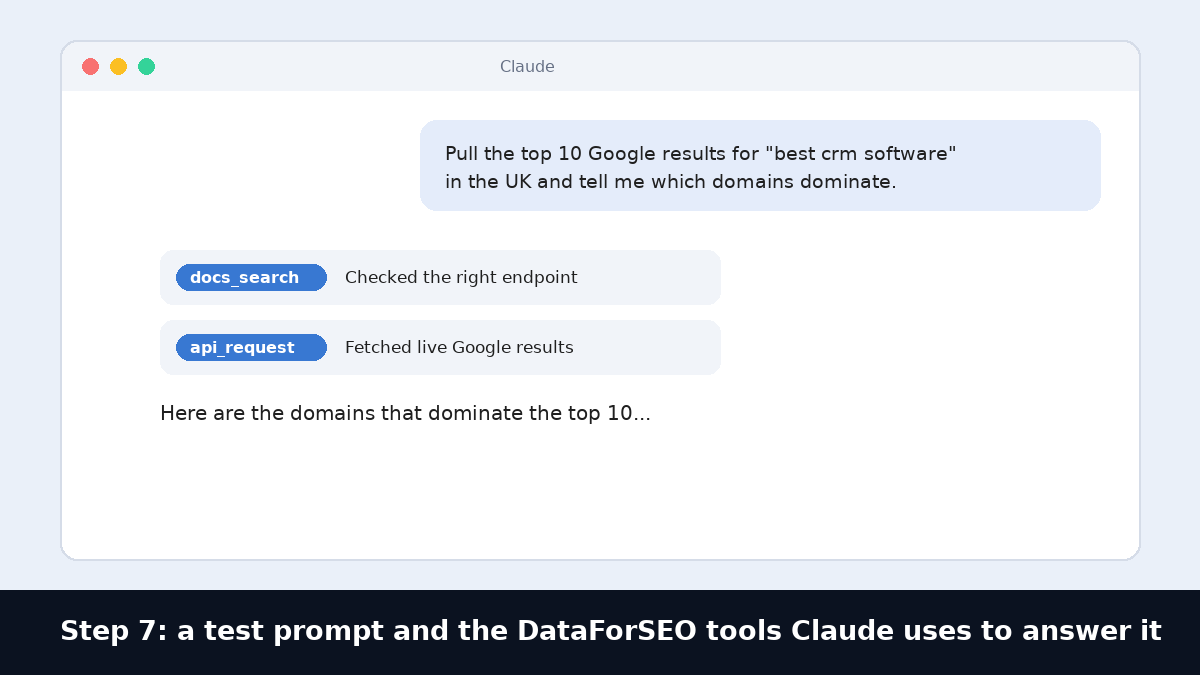
Step 7: Run a test prompt
Start a new chat and paste this:
Pull the top 10 Google results for "best crm software" in the UK and tell me which domains dominate.You should see Claude use docs_search to check the right endpoint, then api_request to fetch the live results. If you see api_request run, you are connected.
Prompts worth trying next
| Job | Prompt |
|---|---|
| Keyword ideas | “Give me 30 keyword ideas for [topic] in Australia with search volume and difficulty. Group them by intent.” |
| Competitor gap | “Compare [my site] and [competitor] and list the keywords they rank for that I do not.” |
| Backlink check | “Summarise the backlink profile for [domain]. Flag anything that looks spammy.” |
| Local SERP | “Show me the top 10 results for [keyword] in [city] and note which ones are local businesses.” |
| Cost check | “Before you run anything, tell me roughly what this request will cost.” |
That last one is a good habit. Ask for a cost estimate before any big pull.
Keeping costs under control
- Leave
api_requeston Needs approval until you trust your prompts. - Ask Claude to cap results (“top 20 only”) on anything that returns lists.
- Ask Claude to save long results to a file instead of printing them in chat. It uses fewer tokens.
- Check the Usage section in your DataForSEO dashboard to see spend per endpoint.
Troubleshooting
| Problem | Fix |
|---|---|
| Custom connector option is missing | Check you are on a paid Claude plan and using the latest desktop app. |
| Connect does nothing | Check the URL has no spaces or trailing characters. Remove the connector and add it again. |
| The /mcp URL fails | Try https://mcp.dataforseo.com/v3/mcp. It is the address listed in DataForSEO’s GitHub readme. |
| “Not authorized” errors | Reconnect and approve again. If you use the manual method below, use your API login and API password, not your dashboard password. |
| Tools not showing | Quit Claude completely, reopen it and start a new chat. |
| Requests fail or cut off | Claude has usage limits. Start a fresh chat or wait for the limit to reset. |
| “Fetch not defined” (manual method) | Update Node.js to the latest version. |
Other ways to connect
Claude Desktop config file (manual). Open Settings, Developer, Edit Config, paste this, save, then restart Claude. You need Node.js installed.
{
  "mcpServers": {
    "dataforseo": {
      "command": "npx",
      "args": ["-y", "dataforseo-mcp-server"],
      "env": {
        "DATAFORSEO_LOGIN": "your_api_login",
        "DATAFORSEO_PASSWORD": "your_api_password"
      }
    }
  }
}
Find your API login and password at app.dataforseo.com/api-access. The API password is not the same as your account password. It shows for the first 24 hours, and after that you can have it emailed to you from the same page.
Claude Code (terminal):
claude mcp add dataforseo --env DATAFORSEO_LOGIN=your_api_login --env DATAFORSEO_PASSWORD=your_api_password -- npx -y dataforseo-mcp-serverThen run claude mcp list to confirm it registered.
Want ready-made workflows?
DataForSEO also publishes a library of no-code templates you can start from: Browse the DataForSEO templates
Questions people ask
Do I need to know how to code?
No. The main method is a custom connector you add and approve once, with no terminal or config files.
How much does it cost?
New accounts get $1 of credit to test with. After that you pay for the data you request, so a quick test costs very little and heavy pulls cost more. Ask Claude for a cost estimate before big requests.
Is it safe to let Claude make requests?
Keep api_request on Needs approval while you learn. You then see each request before it spends any credit.
Where to from here
Once the connector works, the real gain is teaching Claude your SEO routines so you do not retype prompts. That is the next guide in this series.
Ready to start? Create your DataForSEO account
